This guide covers the Hyper-V VM policy workflow. A menu option does not establish end-to-end support for every host/cluster, storage, guest or release. Assess VM generation, CSV and guest VSS separately.
Screenshots were captured from the actual lab interface on 16 October 2026. The interface is in English; explanations follow your selected language. Resource names, dates and settings are examples; use values for your own environment.
Lab note: no registered Hyper-V host was available in Server. Source VM selection and restore target screens could not be captured; the form and catalog state are shown. No new policy or backup/restore was executed.
Hyper-V release, host/node and master components
Source access, account scope and repository data path
VM identity, boot/firmware and all disks
Capacity, consistency and isolated restore acceptance plan
01
1. Define Hyper-V scope and the test VM
Record Hyper-V host/cluster release, VM generation, VHD/VHDX and any CSV/shared-storage layout. Cluster-aware behavior and guest VSS acceptance need separate validation with the installed components.
Expected result
VM, disk and topology scope are recorded.
02
2. Verify access and repository prerequisites
Check the correct host/node connection, required API/service access and source storage capacity. Use the installation’s approved credential record; keep passwords and token secrets out of policy names and screenshots. Verify repository access and component releases together.
Expected result
The source and data path are ready for testing.
03
3. Select Hyper-V in Attribute
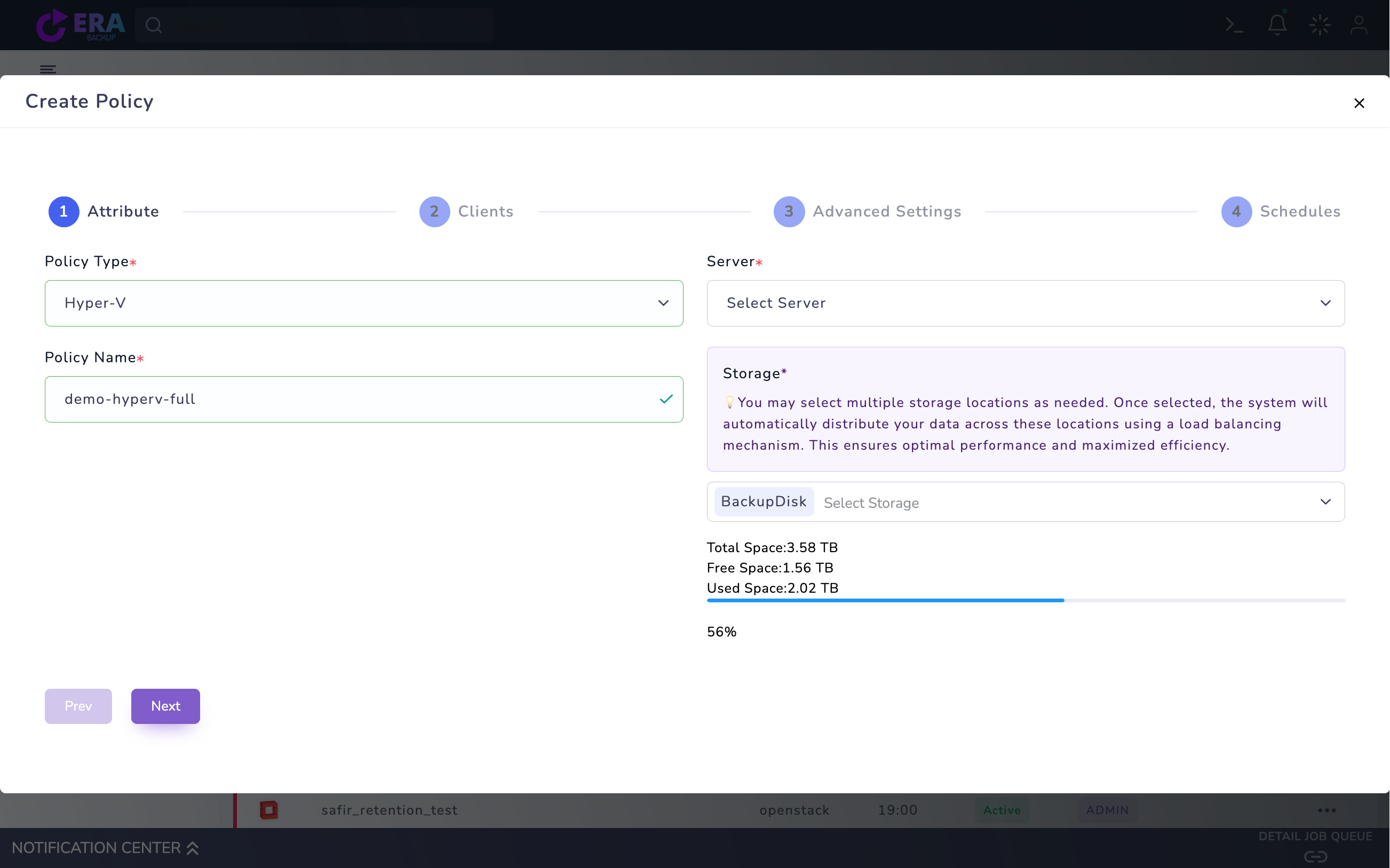
Open Home → Policies → VM Policy → Create Policy. Select Hyper-V as Policy Type, the correct Server connection, Policy Name and Storage. If Server is empty, complete source registration/access preparation; do not substitute another platform’s connection.
Hyper-V Attribute draft: Server is empty, with an example policy name and BackupDisk selected. No registered host was present in Server; this is not a completed source configuration. The policy was not saved. Enlarge ↗
Expected result
An unsaved draft is prepared for the correct platform.
04
4. Select one VM and its disk scope in Clients
If inventory loads, search for one test VM, select it and check the machine count in Summary. Review required boot/data disks, disk order and passthrough/excluded-disk scope. Do not bypass an empty list or No VM state with Select All/Next and call it successful configuration.
Expected result
The selected VM and all required disks are verified.
05
5. Set consistency and retention for the release
Match Advanced Settings to the installed Hyper-V data path. Crash-consistent disk copies differ from application/database consistency. A generic VSS, snapshot or incremental label does not guarantee all guest/storage types; define acceptance for the chosen profile and backup chain.
Expected result
Method, consistency and retention scope are explicit.
06
6. Prepare Schedules and an approved Full test
Use Full/incremental options only to the extent validated in the relevant release. Define the first test window, retention and repository capacity; avoid an unplanned Start Now. Once source/disk selection is complete, review the summary, save only the approved test policy and run the appropriate Full action.
Expected result
The initial test job and retention plan are defined.
07
7. Compare the catalog with actual data acceptance
Compare task result, repository output, VM/disk and catalog time. Last Backup or Active alone does not establish usable data. Validate boot and test data on a new isolated Hyper-V target. Record backup ID, releases, disk scope and result.
Expected result
Backup output and recovery acceptance are evidenced separately.
COMMON QUESTIONS
Can I continue with an empty VM list?
No. Validate connection, permissions and inventory before treating the draft as successful configuration or backup acceptance.