This guide covers agent-based file/folder workflows; it does not establish full-server image, Bare Metal, System State or database-consistency acceptance. A UI option or catalog entry does not guarantee end-to-end data recovery.
Screenshots were captured from the actual lab interface on 16 October 2026. The interface is in English; explanations follow your selected language. Resource names, dates and settings are examples; use values for your own environment.
Some lab screenshots are withheld pending privacy review. Follow the documented steps and use your own environment values.
Lab limits: the Windows win file agent returned a network connection error. The Linux orc79.localdomain agent appeared responsive but the Clients file tree and SUMMARY remained empty. Historical catalogs opened for both platforms. Selecting a Windows fileserver Full point returned Critical components could not be loaded; file selection and the target screen could not be verified. Linux Full points were listed; the target flow was not executed. No new policy, backup or restore was submitted.
Master and agent releases, source server and filesystem
Selected paths, read permissions and repository capacity
Consistency, retention and test recovery target
File/hash, metadata and application acceptance criteria
01
1. Define the source and sample dataset
Record the Windows release, agent release, server identity and filesystem. Choose a small folder containing sample files only, such as C:\EraBackupDemo. Record names, sizes and SHA-256 values; do not modify existing production data for the test.
Expected result
The source and measurable test data are recorded.
02
2. Verify agent and data-path access
Prepare the approved release-matched agent package using its installation documentation. Verify the agent is registered as Windows-Agent, its service runs and it can read the source paths. Check configured networking, TLS and capacity for master/agent and repository. Resolve errors or timeouts before saving a policy.
Expected result
Agent type, service and access are verified.
03
3. Prepare the File Backup policy
Open Home → Policies → Agent Policy → Create Agent Policy. Select the correct Agent, a unique Policy Name and Storage. Use Policy Type → File Backup; the source type must match windows_file. Do not substitute SQL, Bare Metal Image Backup or another method for a file policy.
Windows File Backup draft: win file agent, example policy name and BackupDisk. The agent returned a network connection error; this is not a valid connection example and the policy was not saved.
Expected result
Source and repository match in the correct draft.
04
4. Explicitly select paths in Clients
In Next → Clients, use Search to locate the sample path C:\EraBackupDemo. Select required files/folders and review the paths in SUMMARY. Keep unintended parent folders, whole drives or system trees out of scope. An empty or unloaded list is not a completed selection; do not rely on a default scope by proceeding with Next.
Expected result
Only intended data paths are selected.
05
5. Define consistency and metadata acceptance
Separately validate snapshot/VSS handling for open or locked files in this agent release; selecting File Backup does not guarantee VSS or application-consistent SQL/Exchange. Assess NTFS ACL, owner, timestamps, ADS/EFS and reparse-point coverage against the support matrix and an isolated test.
Expected result
Content and metadata have separate acceptance criteria.
06
6. Plan retention and the first test window
Review the methods, retention and Full/incremental schedules exposed by this release in Advanced Settings and Schedules. Compare repository capacity and recovery-chain requirements with retention. Once source selection is verified, review the summary for an approved small test; avoid starting every server at the same time.
Expected result
Scheduling and retention fit the data scope.
07
7. Verify the catalog and file recovery
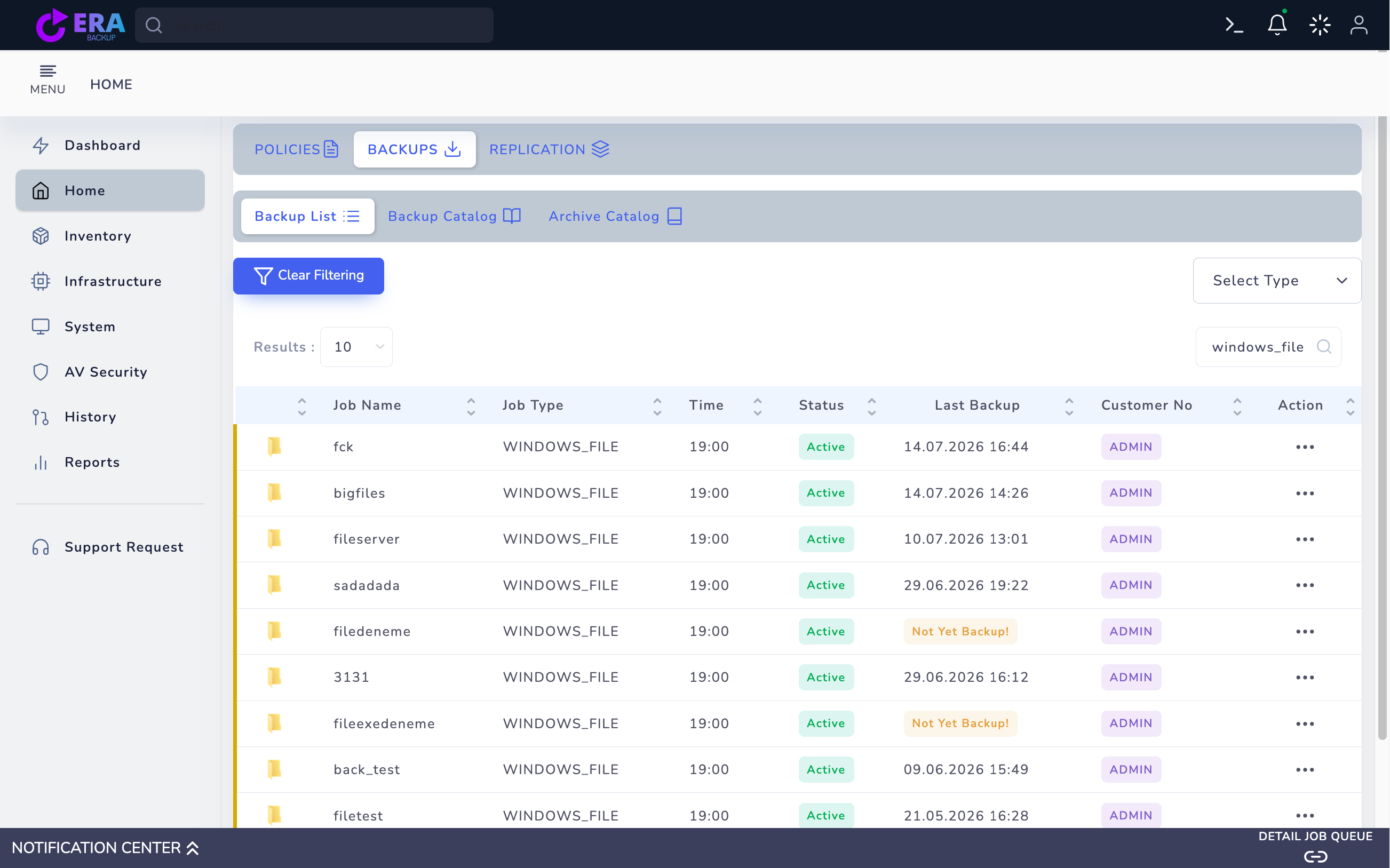
After an approved test, check task results, repository output and windows_file / Last Backup in Backup List together. Do not interpret Active or Not Yet Backup as successful data protection. Use the separate file restore guide to recover samples to a different test folder and complete hash and required metadata acceptance.
Historical WINDOWS_FILE catalog entries and Not Yet Backup jobs. No new backup was taken in this inspection; Active is not data acceptance. Enlarge ↗
Expected result
Backup identity and verified file acceptance are documented.
COMMON QUESTIONS
Does a file backup provide full-server recovery?
No. OS boot, application installation, System State and Bare Metal require separate scope and acceptance. File contents and permissions/metadata must also be verified separately.