This guide uses a new isolated target for initial acceptance. Repository records require the complete disk set and a compatible proxy delivery; legacy VMDK records can use a different data path. This is not a general support claim for Original Location, overwrite or instant recovery.
Screenshots were captured from the actual lab interface on 16 October 2026. The interface is in English; explanations follow your selected language. Resource names, dates and settings are examples; use values for your own environment.
Lab note: the target step returned a parent job error for the existing legacy VMware record. Recovery points were viewed; target selection and end-to-end restore were not validated with this record.
Catalog record, full/incremental chain and disk set
Target vCenter, host/cluster and datastore access
Unique new VM name and an isolated test network
Guest boot, file and application validation plan
01
1. Check the catalog record and disk set
Find the VMware policy in Home → Backups → Backup List. Check platform, source VM, time and backup type together. Match the repository or legacy VMDK path to the technical scope. For multi-disk records, all required disks from the same run must be accessible and complete.
Expected result
The correct source and complete recovery disk set are identified.
02
2. Select the VM and recovery point in RESTORE
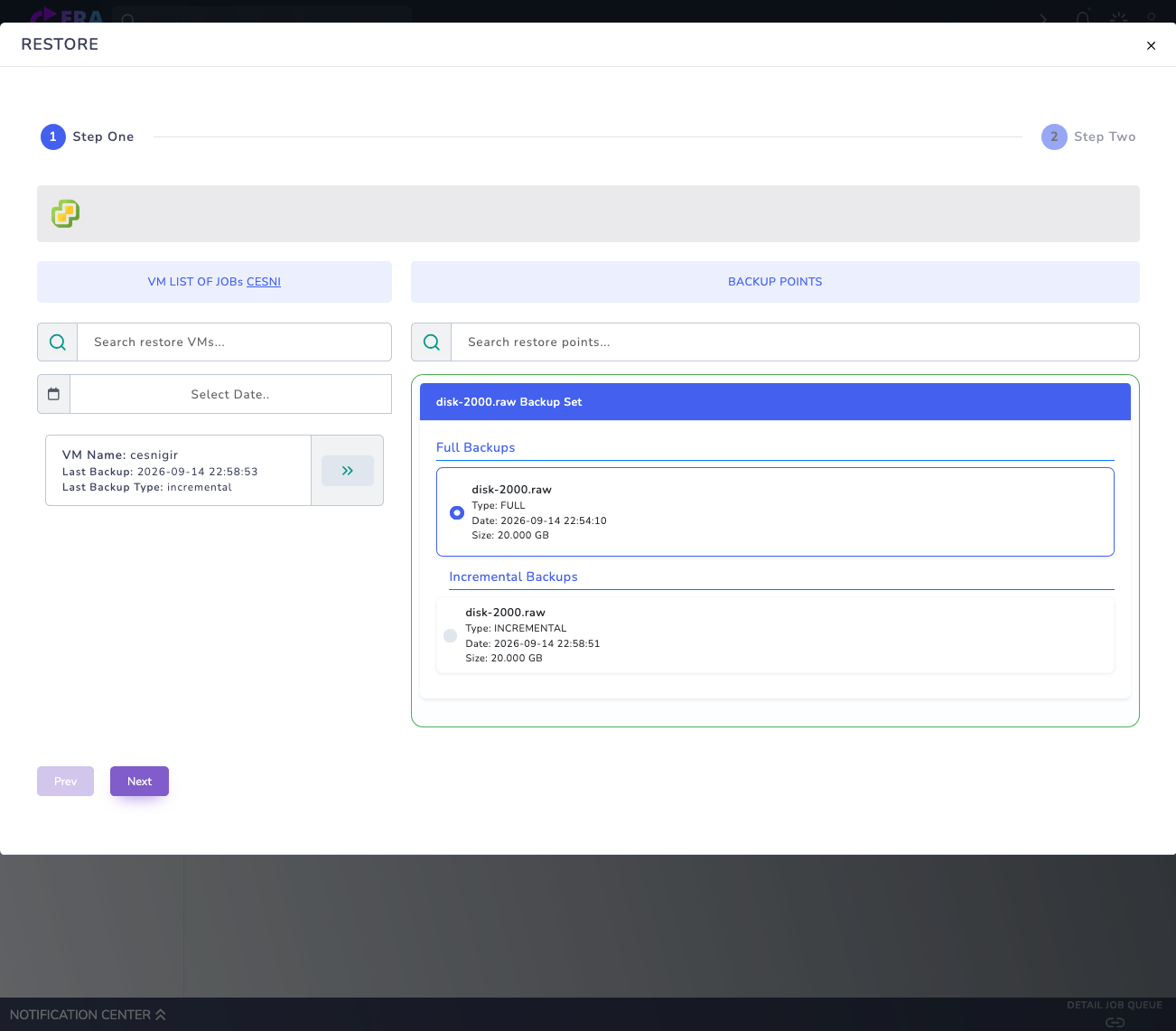
Open Restore from the record’s Action menu. In Step One, select the VM and review Full Backups and any Incremental Backups. Compare date, type and size with the test record. Prefer a validated full point for initial acceptance; validate the complete chain for an incremental selection. Use Next to open target selection.
Full and Incremental points from an existing VMware lab record. The target step could not find a parent job for this legacy record; this image is not evidence of a successful restore. Enlarge ↗
Expected result
The selected recovery point is carried into target selection.
03
3. Define the new target name and location
Choose the new/different location workflow in Select Restore Location. Select target vCenter, datacenter and host/cluster through the available platform fields. Do not reuse an existing VM name. Confirm that the selected record meets the repository restore path’s new-target requirements.
Expected result
Target identity is separate from the source VM with no naming conflict.
04
4. Validate datastore, firmware and disk layout
Verify that the selected proxy/host can see the target datastore and that free space covers logical disk sizes plus operational headroom. Firmware, Secure Boot, controllers and disk slots must match the selected record’s metadata/manifest scope. Validate source access separately if an older record requires source metadata.
Expected result
Datastore and hardware prerequisites are verified before target creation.
05
5. Review the selection in Summary
Compare source, recovery time, new VM name, target host and datastore in Summary. Do not start if disk mappings are incomplete or an existing resource could be overwritten. Submit the final Restore action only for the correct new target; screenshot examples alone are not environment acceptance.
Expected result
One restore job is created only for the approved new target.
06
6. Check job results and target isolation
Monitor completion through notifications and task records. In repository restore, the target is expected to remain powered off and disconnected; verify that state in vSphere. After an apply or disk-write failure, inspect the job ID and error before retrying against the same target.
Expected result
Final job status and the powered-off/isolated target state are verified together.
07
7. Complete guest and application acceptance
Boot the VM under approved isolated test conditions and check guest startup, disk count, the test file and application services. Validate VMware Tools and application connectivity where required. Record duration, versions and outcome. Do not connect the VM to production or remove the source before acceptance.
Expected result
Recovery is documented through actual data and guest checks.
COMMON QUESTIONS
Is this instant recovery?
No. This guide describes restoring data into a new VM and isolated acceptance testing. Instant recovery and overwrite of a running VM require separate validation.