This guide covers agent-based file/folder workflows; it does not establish full-server image, Bare Metal, System State or database-consistency acceptance. A UI option or catalog entry does not guarantee end-to-end data recovery.
Screenshots were captured from the actual lab interface on 16 October 2026. The interface is in English; explanations follow your selected language. Resource names, dates and settings are examples; use values for your own environment.
Lab limits: the Windows win file agent returned a network connection error. The Linux orc79.localdomain agent appeared responsive but the Clients file tree and SUMMARY remained empty. Historical catalogs opened for both platforms. Selecting a Windows fileserver Full point returned Critical components could not be loaded; file selection and the target screen could not be verified. Linux Full points were listed; the target flow was not executed. No new policy, backup or restore was submitted.
Master and agent releases, source server and filesystem
Selected paths, read permissions and repository capacity
Consistency, retention and test recovery target
File/hash, metadata and application acceptance criteria
01
1. Find the correct server and file job
Open Home → Backups → Backup List. Match the linux_file type and source server/policy identity. Compare Last Backup with the appropriate time before the incident. A Not Yet Backup job is not a usable file point; do not substitute a disk image or database job for the file catalog.
Expected result
Source, job type and requested time match.
02
2. Check the recovery point and chain
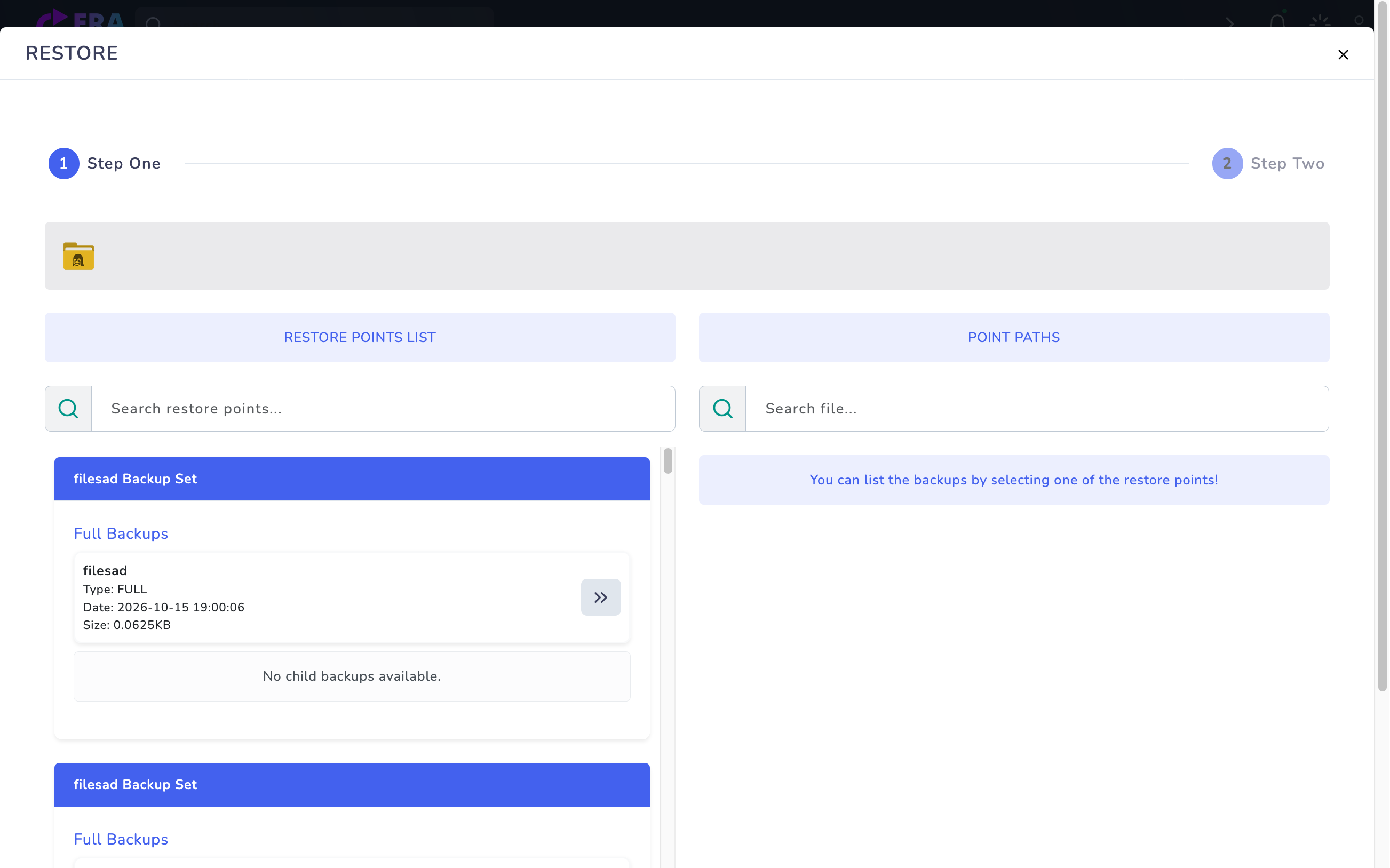
Open Action → Restore for the job. In RESTORE POINTS LIST, inspect the Full point and any dependent incremental point by date, method and size. Repository data and the required chain must be accessible. A tiny size, old date or visible catalog entry does not prove content integrity.
filesad Full catalog points and sizes. POINT PATHS is not selected yet; very small displayed sizes require separate file-scope checks. Target and Restore steps were not executed. Enlarge ↗
Expected result
The point and required data chain are identified.
03
3. Explicitly select scope in the file tree
Open the point and wait for the file tree under POINT PATHS / Search file. Explicitly select only the test file/folder; record full paths and file count. Empty selection is not a safe zero-file operation: the inspected submission code can collect all loaded file nodes when selection is empty. Stop if the tree fails or scope is unclear.
Expected result
The selected file list is explicit and limited.
04
4. Prepare a different test destination
After Next, inspect the installed release’s target form. The inspected pageTwoFile template offers Original Location and Different Location. For the initial test, prepare an absolute path separate from the source folder, such as /restore/erabackup-demo, under Different Location → Restore Path. This field alone does not establish a different server/agent. Verify the target filesystem and free space.
Expected result
The target path is separate from the source with sufficient capacity.
05
5. Review collisions and the final summary
Recheck point identity, selected paths, destination and file count. Validate overwrite/rename/skip behavior for existing names in the relevant release; do not assume an option that the UI does not expose. Original Location may affect existing data. Execute the final Restore only after scope and collision behavior are approved.
Expected result
Final scope and effects on existing data are understood.
06
6. Verify the task and file contents
In an approved test, inspect task results and actual destination files together. Compare names, sizes and SHA-256 values with the recorded samples. Check reports for skipped/locked files and partial failures. A success message alone does not establish that every file was recovered correctly.
Expected result
Task results and file contents support the same acceptance result.
07
7. Accept permissions and application access
Open files as the expected service account; compare UID/GID, mode, ACL, xattr, timestamps and link behavior. Recovery of these metadata features was not validated in this inspection. Do not hide service-access or security-context differences with broad permissions; plan release-appropriate corrections and repeat acceptance. Record backup ID and target path.
Expected result
Content, metadata and user access are documented separately.
COMMON QUESTIONS
Does a file backup provide full-server recovery?
No. OS boot, application installation, System State and Bare Metal require separate scope and acceptance. File contents and permissions/metadata must also be verified separately.