This guide covers initial Master installation on a clean Linux server and trusted access to the web interface. For an existing installation, use the update procedure supplied with your release.
Installer family: Full Master terminal installer. Ubuntu 22.04/24.04 and RHEL, Rocky or AlmaLinux 8/9 use separate packages. The Ubuntu online 2.0.3 installer and Ubuntu 24.04 offline package have different launch commands; do not mix these workflows.
Screenshots were captured from the actual lab interface on 16 October 2026. The interface is in English; explanations follow your selected language. Resource names, dates and settings are examples; use values for your own environment.
Installation package and manifest from an authorized channel
Static IP, FQDN, DNS and NTP
sudo access and a persistent repository disk
License and an organization-approved TLS/CA plan
01
1. Prepare the server and capacity
Verify the operating system and x86_64 architecture supported by your delivery package. The Full Master package documentation lists a starting minimum of 4 vCPU, 16 GB RAM and 20 GB free application space, excluding repository capacity. Size the deployment for workloads and concurrent jobs. Prepare a separate persistent repository mount that survives reboots.
Finalize hostname and FQDN before installation.
DNS and NTP must work; required APT/DNF dependencies must be available.
Command example
cat /etc/os-release
uname -m
hostnamectl
timedatectl status
df -h
Expected result
The expected operating system, time and repository mount are visible.
02
2. Verify the package and manifest
Obtain the Full Master archive for your operating system and its delivery manifest through an authorized EraBackup channel. Follow the delivery signature or checksum verification procedure. Do not start installation if SHA-256 values differ from the manifest. The example assumes SHA256SUMS is in the package directory.
Command example
sha256sum -c SHA256SUMS
Expected result
The relevant package reports OK.
03
3. Open the terminal installer
Extract the verified archive, enter its directory and run install-tui with sudo. Replace the example archive and directory names with the exact delivered names. This procedure is for a clean server; do not run initial installation over an existing EraBackup database.
Command example
tar -xzf <FULL_MASTER_ARCHIVE>.tar.gz
cd <EXTRACTED_FULL_MASTER_DIRECTORY>
sudo ./install-tui
Expected result
The terminal installation form opens; review its fields before final confirmation.
04
4. Enter Master and repository details
Select the integrations to install. Enter Master FQDN/IP, repository path and repository ID, followed by administrator details. The repository path must refer to the mounted storage. Set the initial administrator password through the hidden prompt, not command-line arguments. Correct any operating system, disk or server identity mismatch in the final summary.
Expected result
The summary matches the approved server, integrations and storage target.
05
5. Complete installation and check services
After reviewing the summary, start installation and keep the terminal open. The Full Master installer signals successful completion with INSTALL_OK. Then inspect the healthcheck and failed service list. Record failures and resolve their cause before rerunning the installer.
Required installed components pass health checks. Unconfigured optional integrations are assessed separately.
06
6. Verify TLS trust and first sign-in
Use your enterprise PKI certificate or the internal CA chain generated during installation. Certificate SANs must match the FQDN used for access. If using an internal CA, deploy its certificate to client trust stores through an approved process. Open the application over HTTPS and sign in with the delivered administrator account. Resolve CA, name or time issues rather than bypass certificate warnings.
HTTPS connects without certificate errors and the sign-in page is reachable.
07
7. Complete licensing and the first source connection
Check license status and resource limits in the licensing screen. Add the platform connection with its API account and required permissions, then verify the inventory belongs to the intended environment. Complete OpenStack/Safir node deployment through Deploy Agent, or VMware proxy/VDDK and OpenShift components through their respective delivery procedures. Master access alone does not prove data-path readiness.
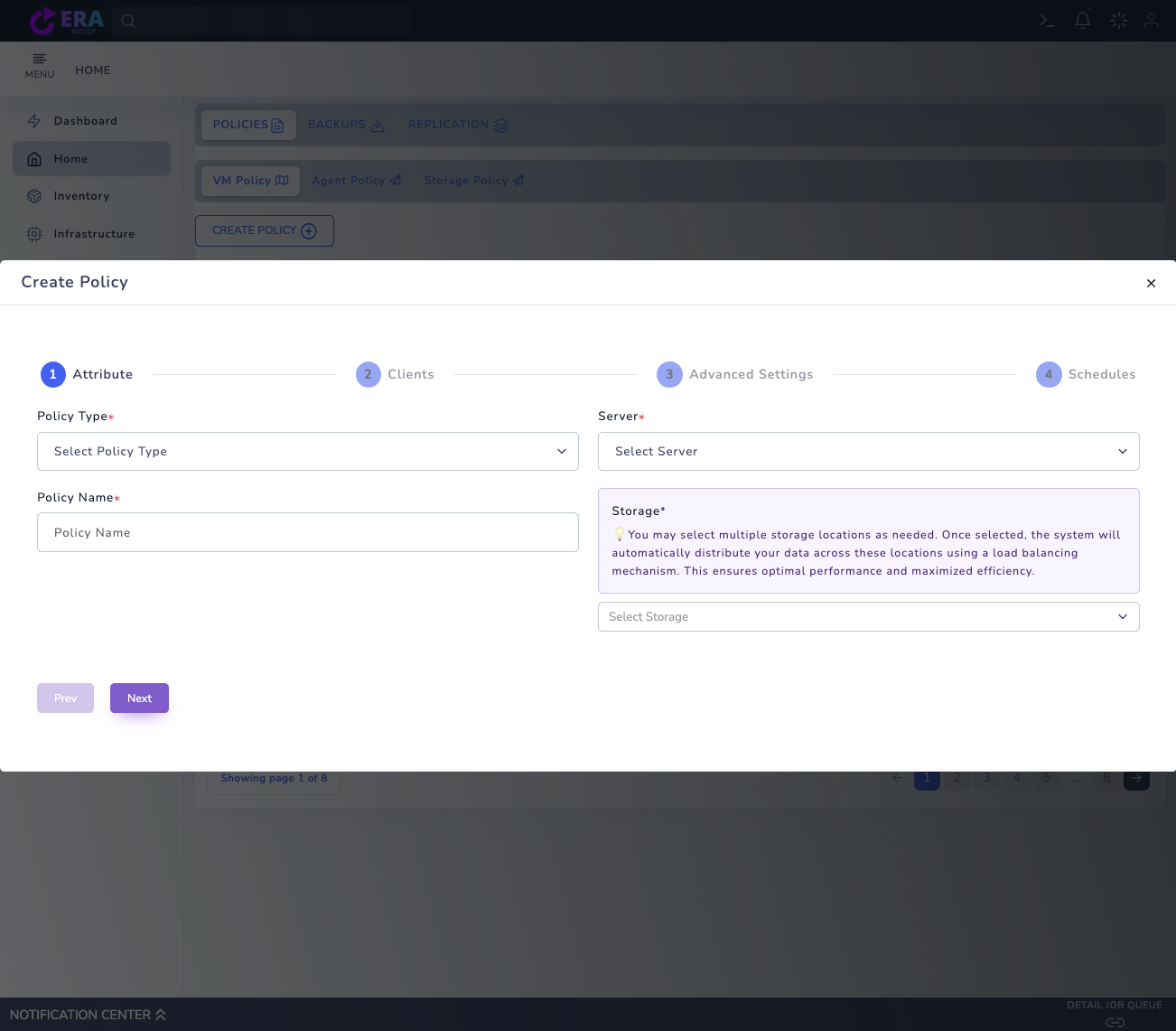
After installation: Home → Policies → VM Policy → Create Policy. Blank fields show where to select the source connection and repository; opening this window does not start a backup. Enlarge ↗
Expected result
License scope is correct, source inventory is reachable and the repository data path is validated.
COMMON QUESTIONS
Does this guide update an existing system?
No. Initial installation and upgrades are different operations. Existing systems require database/configuration backups and the update procedure for the delivered release.